Photography

How to print your photos properly

From choosing the right files to simple editing tweaks, this step-by-step guide explains how to get high-quality prints at home or online – no professional skills required

Man wearing sunglasses, a gray beanie, and a jacket, with a neutral expression, in a black and white portrait.

Harry Guinness

Writer and Photographer

16 Mar, 20265 min

How to print your photos

Printing photos is one of the most exciting things you can do as a photographer. There’s nothing quite like having your images physically in front of you. But if you’ve never done it before or experienced bad results in the past, it can seem like a needlessly complicated and confusing process. 

Don’t worry – this article will tell you everything you need to know how to print photos at high quality. Whether you shoot them with a DSLR, smartphone, or compact camera or are printing a photobook, canvas to give as a gift, or just some 6-by-4s to put on your fridge, these tips will help you get the best results.

Step 1: Choose the right photos

Selecting what photos you want to print is the first part of the printing process. Obviously, you want to print meaningful images but there are also some technical considerations. You want to choose images that are well lit and in-focus. If they look dark and blurry on your screen, they’ll look even darker and blurrier when printed out. However, the most important thing is to choose high-resolution original files to print. The good news is that this is really easy to get right so long as you avoid one common pitfall. 

Every modern camera takes incredible high resolution images. A 24 megapixel camera, a common smartphone choice, takes an image that’s approximately 4000 x 6000 pixels. At 300 dots-per-inch (the basic benchmark for a high quality print that you want to view close up), you can print a canvas that’s approximately 13-inches by 20-inches before you have to even consider upscaling or lowering the print resolution.

Now, here’s the catch: those 24MP files are pretty big, so when you share an image over WhatsApp, Facebook, Instagram, or other social network, it typically gets compressed. This is a good thing if you want your images to upload quickly but it’s terrible for print quality. Depending on the original image and upload settings, a 24MP file can get reduced to a 12MP file or even a 2MP file. 

If you shot the images yourself, then you have the originals. Just make sure to select them when you go to print. If you want to print images that someone else has sent you, then for best results you should ask them to send you the originals using a file transfer service like Dropbox or Google Drive. 

Step 2: Decide what you’re printing

Once you’ve decided what images you’re going to print, you need to decide what format you’re going to print them in. While the process is very similar, if you want to prepare photos for a photo book you will make a few different decisions than if you are preparing to print them as a large canvas. 

The big things you need to think about are:

  • What size are you going to print the image? Is the original file high enough resolution for that?

  • What aspect ratio (the shape and orientation) are you going to print the image? Smartphone cameras typically have an aspect ratio of 4:3 but 3:2 and 1:1 are common print aspect ratios. This means you may need to crop your images to fit. 

It’s also worth thinking about how you’re going to display your images. You might make slightly different editing decisions if you’re going to hang a canvas in your brightly lit hall or a dark den. 

Step 3: Use the right file type

There are a couple of common image file types you should be familiar with. Like resolution, it’s really easy to choose the best file type for printing as long as you avoid a pitfall or two. 

  • JPG is the most common image format. It’s the easiest format to get great prints from. If you’re exporting to JPG in a photo editing app, choose high quality and avoid compressing the final files. 

  • HEIC is what modern iPhones now shoot. Depending on your print service, you may need to convert it to JPG or it may do it automatically.

  • PNG is used for designs and screenshots. It’s not very good for printing images. So, if you have an original file, use that instead of a screenshot of the photo!

RAW and TIFF are two file types that professional photographers need to know. There’s no need to dwell on them, but it’s still handy to know that they’re image files. 

You might also see information about colour space. Most digital images are in the sRGB colour space which is perfectly suitable for printing. Any professional print shop or good home printer will be able to handle it easily. If you’re concerned about perfect colour accuracy, this is something you can explore more but most people don’t need to stress this.

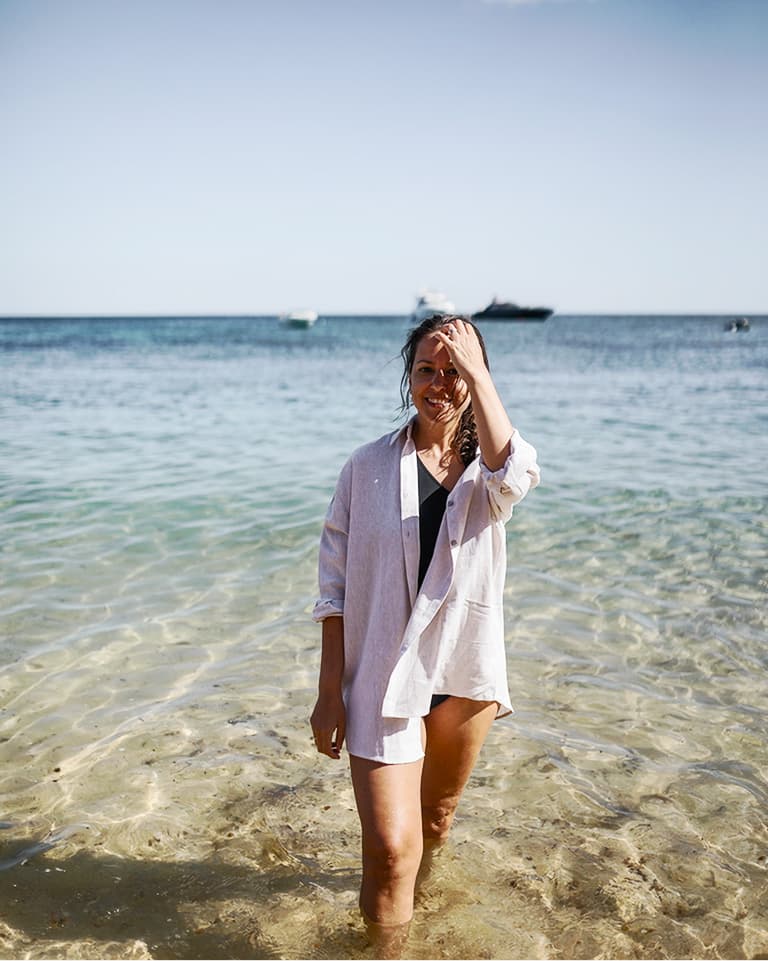
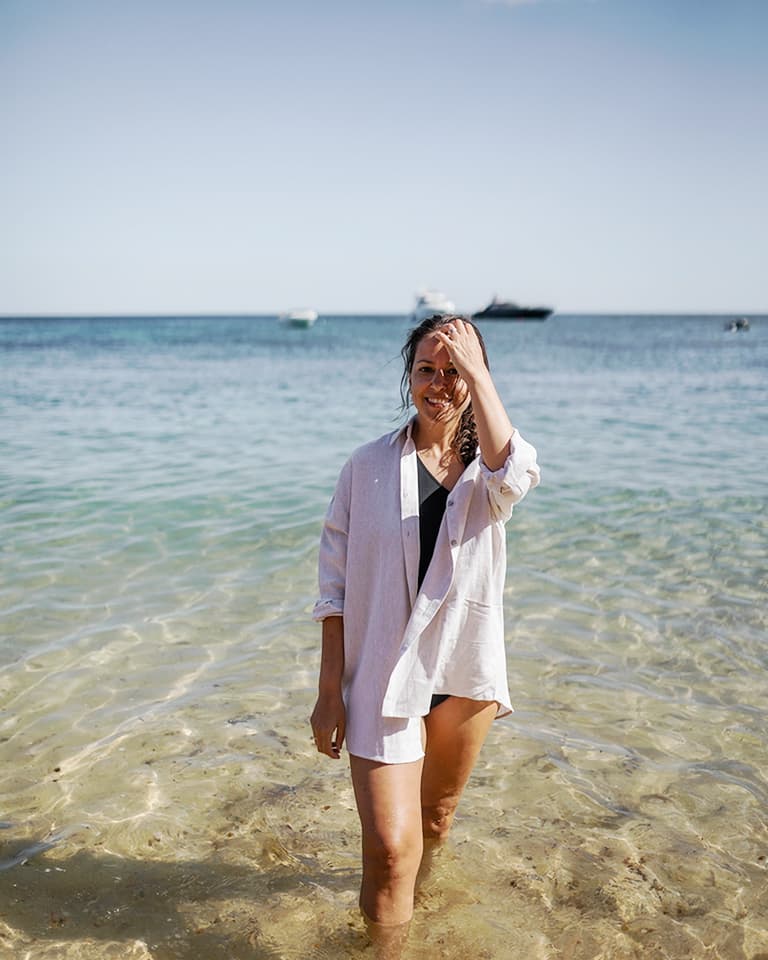
Original image

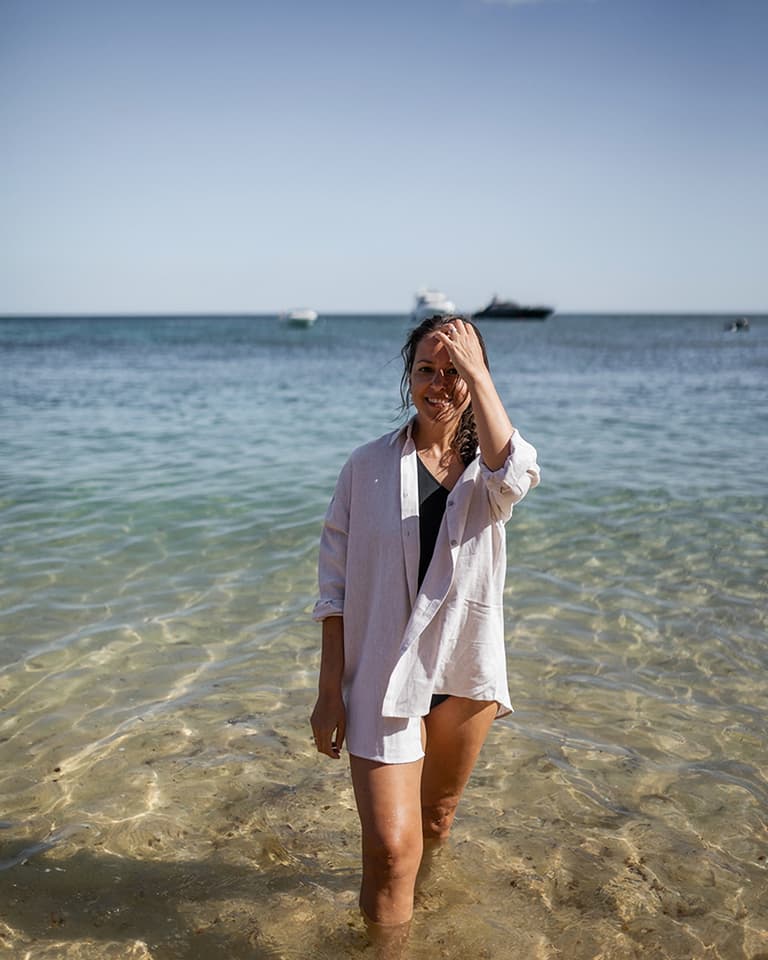
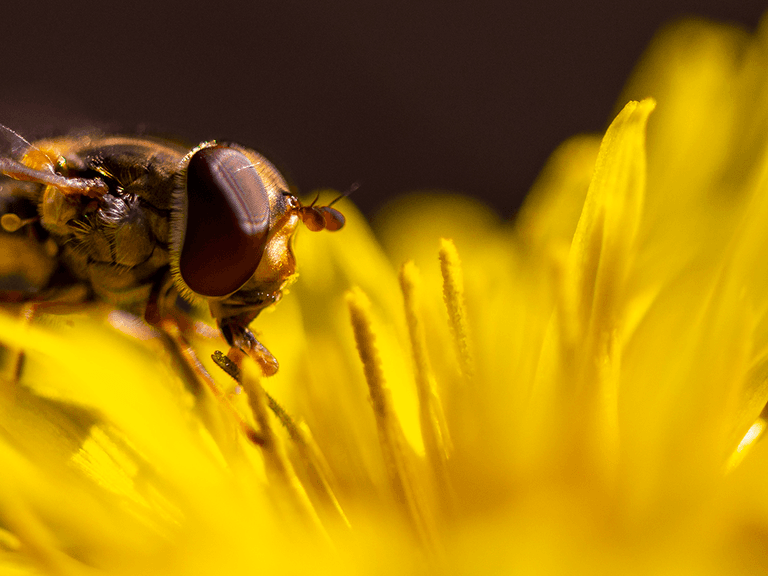
Increased brightness

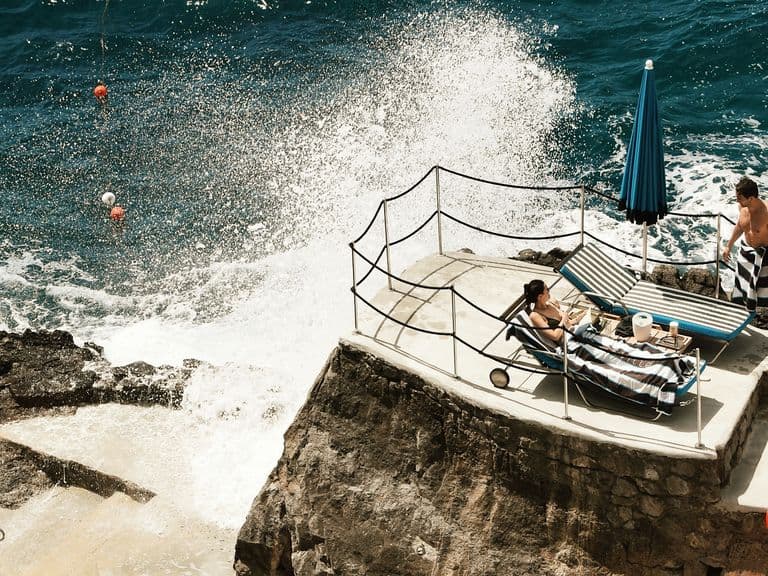
Increased contrast

Step 4: Make a few essential edits

Photos on a screen often look a little bit different from printed photos; a big reason for this is that screens are actively emitting light while photos reflect light from the environment. This means that printed photos often look a little darker and flatter than on-screen images. That’s easy to fix with a few simple tweaks in a photo editor. You don’t need to use Photoshop, the editor built into your photos app or print service will do a great job. 

Some things to do are:

  • Brightness: brighten everything a touch. Just increase the overall exposure or light levels until the image looks a little too bright on your screen. 

  • Contrasts: add some contrast. A small amount can really make your image pop. 

  • Sharpening: a little bit of sharpening can improve the details in your print. 

  • Crop your image: crop your image to match the aspect ratio of the print. It’s best to do it yourself rather than leave it up to the printer so you can frame the image correctly. Be careful not to cut off any important details. 

Step 5: Double check everything

With the edits done, you’re almost ready to print. The last step is to double check everything. Make sure your images are the original high resolution files, that you have them saved as JPGs, and you’ve cropped them to match the right print aspect ratio. If you’re printing at home, now is a good time to do a test print. If not, don’t worry. If you’ve followed these steps, you should get great results. 

Step 6: Print and enjoy

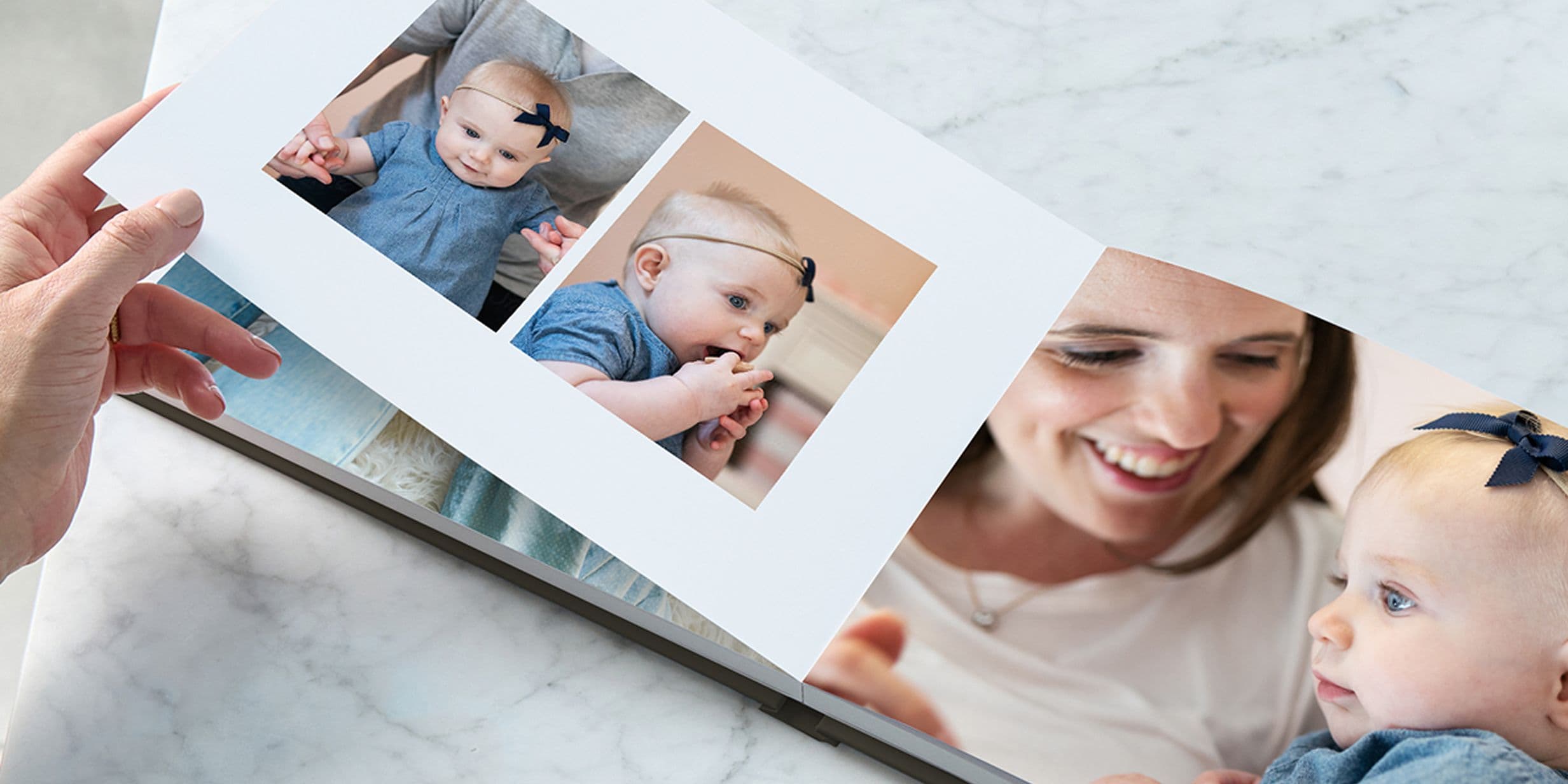
And with all that done it’s time to send your images off to the printer. Follow this photo print guide and you really don’t need to have professional-level knowledge or equipment to get incredible prints. An original high-resolution smartphone image with a few tweaks can look great hanging on your wall, as a spread in a photo book, or even be a meaningful gift. 

Loading...

Download the app

Discover memories faster with exclusive features like facial recognition and smart albums.

App StoreApp Store
Download the app